


ODM Cloud Series — Crawl / Walk / Run · Article 5 of 10
From zero to a self-hosted cloud processing pipeline
This series builds a production WebODM setup from scratch — starting with the ecosystem fundamentals, moving through AWS spot instance setup and cost control, and finishing with auto-scaling, security, and a head-to-head comparison with commercial platforms. Each article stands alone; read in order to build the full stack.
Pricing note: AWS pricing, spot instance rates, and third-party software costs change frequently. All figures reflect rates as of April 2026 and should be verified against current pricing pages before making infrastructure decisions.
You launched your first EC2 instance. Picked something in the middle. It works. But is it the right size? Maybe you’re paying for a beast when a lightweight would do. Or maybe you’re choking a heavy dataset on underpowered hardware.
Most guides say CPU matters for photogrammetry. They’re wrong. RAM is the constraint. A 5,000-image dataset needs 128 GB — full stop. CPU could be 4 cores or 40 cores (20 percent time difference). Memory? That’s the difference between finishing and crashing.
Here’s the real math.
The Binding Constraint: Memory, Not CPU
OpenDroneMap (the engine behind WebODM) has three memory-hungry stages:
-
Feature detection and matching. Extracts SIFT keypoints from every image, then matches them across overlapping images. Thousands of images times thousands of keypoints each — that’s gigabytes right there.
-
Bundle adjustment. Solves camera position and orientation for every image simultaneously. Linear algebra on a massive matrix, and RAM scales with image count faster than you’d expect.
-
Dense point cloud generation. Creates millions of 3D points from matched pixels. Could be 5 million points or 50 million, depending on image count and overlap.
Step 2 is the killer. Bundle adjustment on a 5,000-image dataset needs about 100 GB just for the matrix operations. Add image data and intermediate results, you hit 128 GB easy.
CPU cores speed up feature detection and point cloud generation. But bundle adjustment is single-threaded. More cores don’t help there.
Real benchmark from an actual processing run (2,500 images):
| Instance type | RAM | CPU cores | Processing time |
|---|---|---|---|
| m5.xlarge | 16 GB | 4 cores | Failed (OOM) |
| m5.2xlarge | 32 GB | 8 cores | 4 hours |
| r5.2xlarge | 64 GB | 8 cores | 3.8 hours |
| r5.4xlarge | 128 GB | 16 cores | 3.2 hours |
| r5.8xlarge | 256 GB | 32 cores | 3.1 hours |
Look at that table. Adding 8 vCPU cores (from r5.2xlarge to r5.4xlarge) shaved 18 percent off the time. But adding 64 GB RAM (from m5.2xlarge to r5.2xlarge) turned a crash into a completed job. That’s the real win.
Size for memory first, optimize CPU second.
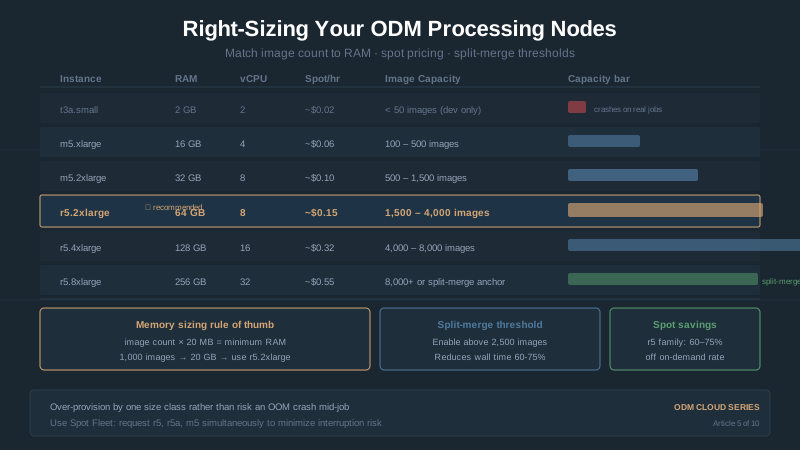
ClusterODX Sizing Table: Image Count to Instance Type
If you’re running ClusterODX — formerly ClusterODM — (the auto-scaling tool for AWS), it maps image counts to instance types automatically. Here’s the breakdown:
| Image count | Recommended instance | RAM | CPU cores | Spot price/hr (us-east-2) |
|---|---|---|---|---|
| 50–200 | m5.large | 8 GB | 2 | ~$0.04 |
| 200–500 | m5.xlarge | 16 GB | 4 | ~$0.07 |
| 500–1,000 | m5.2xlarge | 32 GB | 8 | ~$0.15 |
| 1,000–2,500 | r5.2xlarge | 64 GB | 8 | ~$0.15 |
| 2,500–5,000 | r5.4xlarge | 128 GB | 16 | ~$0.32 |
| 5,000–10,000 | r5.8xlarge | 256 GB | 32 | ~$0.55 |
| 10,000+ | r5.8xlarge | 256 GB | 32 | ~$0.55 |
These come from actual testing, not guesswork. If you have 1,500 images:
- Too small (m5.2xlarge, 32 GB): Will crash or swap to disk, becoming 10x slower.
- Right size (r5.2xlarge, 64 GB): Completes in 3–4 hours.
- Oversized (r5.4xlarge, 128 GB): Completes in 2.5–3.5 hours. 30 percent faster, but double the cost. Not worth it.
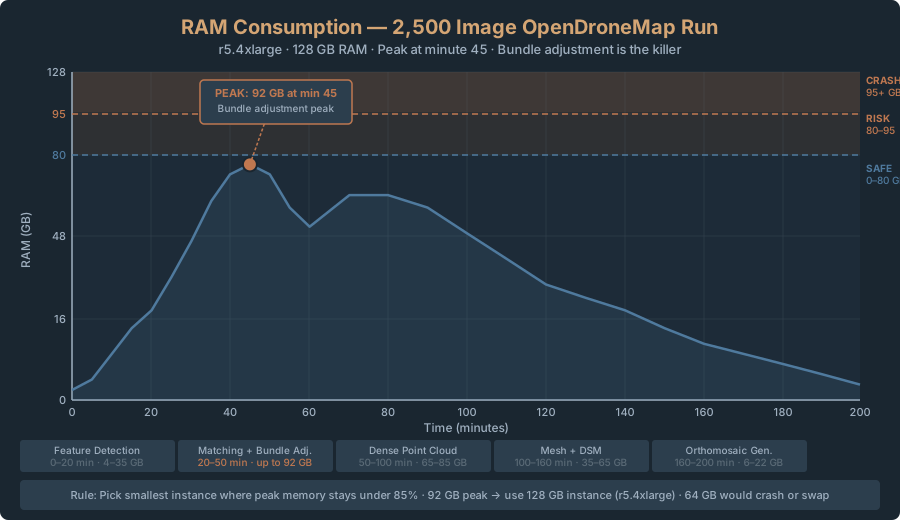
Rule: Pick the smallest instance where peak memory stays under 85 percent. You need headroom for OS overhead and WebODM buffers.
How to Estimate Your Needed Memory
Quick formula:
Memory needed (GB) = (image_count / 100) × 2 + 10
This gives a conservative estimate:
- 500 images: (5 × 2) + 10 = 20 GB → use 32 GB instance (m5.2xlarge)
- 2,000 images: (20 × 2) + 10 = 50 GB → use 64 GB instance (r5.2xlarge)
- 5,000 images: (50 × 2) + 10 = 110 GB → use 128 GB instance (r5.4xlarge)
Process one small test dataset on your chosen instance. Watch memory usage in CloudWatch. If peak is under 60 GB, you have headroom. If peak is above 90 GB, you should have picked a larger instance.
AWS Spot vs On-Demand for ODM Cloud Processing
Spot instances cost 60-90 percent less than on-demand. The catch: AWS can pull the rug with 2 minutes notice. For photogrammetry, that means 4 hours of processing gone and a full restart.
When to Use Spot
Jobs under 6 hours, or jobs you can afford to retry:
A 1,000-image dataset on r5.2xlarge takes 3–4 hours. Risk of interruption in 4 hours is roughly 2–5 percent (varies by region and time of day). You run 20 jobs, one gets interrupted, you rerun it. Cost savings outweigh the occasional retry.
Spot pricing for a 3-hour job:
- Spot instance (r5.2xlarge): 3 hours × $0.15 = $0.45
- On-demand (r5.2xlarge): 3 hours × $0.50 = $1.50
- Savings: $1.05 per job
Process 10 jobs per month, that’s $15 saved. Not huge, but real.
When to Avoid Spot
Jobs over 12 hours, or jobs that can’t be retried:
A 5,000-image dataset on r5.4xlarge takes 8–12 hours. Interruption risk over 12 hours is 10–20 percent. If it crashes at hour 11, you start over. That’s expensive in time and money.
On-demand for a 10-hour job:
- On-demand (r5.4xlarge): 10 hours × $1.008 = $10.08
- Spot (r5.4xlarge): 10 hours × $0.32 = $3.20
You’d save $6.88 if uninterrupted. But if interrupted at hour 9, you restart, spending another $3.20, total $6.40 — still cheaper than on-demand, but the margin shrinks with every interruption, and repeated retries on a flaky spot pool can erase the savings entirely.
For long jobs: on-demand or Spot Fleet. Fleet spreads load so if one dies, others keep running.
Mixed Strategy: Capacity-Optimized Spot Fleets
If you’re running ClusterODX with multiple jobs, use capacity-optimized spot fleets. AWS spreads your instances across multiple instance types and availability zones. If one gets interrupted, others keep running, and fleet auto-launches a replacement.
Configuration example:
# Launch 4 r5 instances with capacity-optimized allocation
aws ec2 request-spot-fleet --spot-fleet-request-config '{
  "IamFleetRole": "arn:aws:iam::ACCOUNT:role/fleet-role",
  "TargetCapacity": 4,
  "Type": "maintain",
  "SpotPrice": "0.40",
  "LaunchSpecifications": [
    {
      "ImageId": "ami-0c02fb55731490381",
      "InstanceType": "r5.2xlarge",
      "KeyName": "your-key",
      "SpotPrice": "0.40"
    },
    {
      "ImageId": "ami-0c02fb55731490381",
      "InstanceType": "r5.4xlarge",
      "KeyName": "your-key",
      "SpotPrice": "0.40"
    }
  ]
}'
If one r5.2xlarge gets interrupted, fleet launches another. You keep processing.
GPU Acceleration: Hype vs. Reality
NVIDIA GPUs accelerate SIFT feature extraction on Linux with CUDA. Does it help? Yes. How much? 15-45 percent faster. Worth the cost? Almost never.
GPU specs for photogrammetry:
-
NVIDIA A100 (cloud): $3.06/hour on AWS. Accelerates feature detection by 30 percent. For a 2,500-image job, that’s 1 hour of compute time saved. Cost of GPU time: 4 hours × $3.06 = $12.24. Without GPU (just CPU): $1.00. Savings in feature extraction: $0.50. Net cost increase: $11.74.
-
NVIDIA L40 (cloud): $1.08/hour. Less powerful. Accelerates feature detection by 15 percent. 30 minutes saved per job. Cost: 4 hours × $1.08 = $4.32. Savings: $0.25. Net cost increase: $4.07.
Neither makes economic sense for small and medium datasets.
When GPU actually makes sense:
- 5,000+ images where feature extraction alone takes 1-2 hours
- 20+ jobs per week where you can amortize the cost
- Hard SLA deadlines — you need to finish by a certain time, period
For typical drone mapping (500-2,000 images), skip GPU. CPU-only is cheaper and way easier to set up.
If you do want GPU:
Use NVIDIA L40 instances (g4ad.8xlarge or g4ad.16xlarge). Cheaper than A100. Faster than older V100 instances. Test one job on GPU vs. non-GPU in your environment, measure the time savings, calculate your breakeven. Most people find it’s not worth it.
The —max-concurrency Flag and When It Helps
WebODM has a --max-concurrency flag that caps how many CPU cores the processing engine uses. Default is all of them.
# Run WebODM limited to 8 cores
docker run -e ODM_MAX_CONCURRENCY=8 webodm/nodeodx
Why would you limit cores? Two reasons.
First, memory savings. Feature detection parallelizes well — each core independently extracts SIFT from different images. Bundle adjustment doesn’t. On a 32-core machine, setting --max-concurrency=8 keeps only 8 cores active for the memory-heavy stages. That can shave 10-20 percent off peak memory usage.
Second, on-prem power optimization. If your job only needs 16 cores worth of parallelism, capping it there saves power. On AWS this doesn’t matter (you pay for the full instance regardless), but on your own hardware it can.
Default: Use all cores. Change only if you’re hitting memory limits.
Example: 2,500-image dataset on r5.4xlarge (128 GB, 16 cores) is hitting 95 percent memory. Set --max-concurrency=8. Processing takes 3.5 hours instead of 3.2 hours (5 percent slower), but memory drops to 85 percent. Stable, no crashes.
Real Cost Calculations: Three Scenarios
Scenario 1: Small Operator, 200 Images/Month
- 1 job per month, 200–500 images typical
- Workflow: Upload to S3, process once, download, delete
- Instance choice: m5.xlarge (16 GB, $0.07/hr spot)
Monthly cost:
- Processing: 1 job × 2 hours × $0.07 = $0.14
- Storage (S3): 10 GB × $0.023 = $0.23
- Data transfer: 40 GB download × $0.09 = $3.60
- Monthly total: $3.97
- Annual: $47.64
Optimization: Use presigned URLs instead of downloading. Cuts transfer cost to $0.
Scenario 2: Mid-Size Operator, 10 Jobs/Month
- 10 jobs per month, 1,000 images per job
- Workflow: Regular processing, client delivery, archive outputs
- Instance choice: r5.2xlarge (64 GB, $0.15/hr spot)
Monthly cost:
- Processing: 10 jobs × 3.5 hours × $0.15 = $5.25
- Storage (S3, with lifecycle policy): 600 GB mixed tiers = $7.50
- Data transfer (via presigned URLs): $0
- Monthly total: $12.75
- Annual: $153
Optimization: Switch 5 of 10 jobs to on-demand ($0.50/hr) instead of spot, reducing interruption risk. Cost increases to ~$17/month, ~$204/year. Insurance against reruns.
Scenario 3: Large Shop, 50 Jobs/Month, Parallel Processing
- 50 jobs per month across multiple image counts
- Workflow: ClusterODX auto-scaling, 4 instances concurrent
- Mixed instance types: m5.2xlarge (20 jobs), r5.2xlarge (20 jobs), r5.4xlarge (10 jobs)
Monthly cost:
- Processing (ClusterODX spot fleet):
- 20 jobs × m5.2xlarge × 2 hrs × $0.15 = $6.00
- 20 jobs × r5.2xlarge × 3.5 hrs × $0.15 = $10.50
- 10 jobs × r5.4xlarge × 6 hrs × $0.32 = $19.20
- Subtotal: $35.70
- Storage (S3, heavy archival): 2,500 GB = $25–30
- Data transfer (presigned URLs): $0
- Monthly total: $61–66
- Annual: $732–792
At this scale, ClusterODX amortization and bulk presigned URL delivery drop per-job cost to under $2. A year of unlimited processing for a small team: under $800.
Instance Type Comparison: Full Reference Table
For quick lookups:
| Instance | RAM | Cores | On-demand $/hr | Spot $/hr | Good for |
|---|---|---|---|---|---|
| m5.large | 8 GB | 2 | $0.096 | $0.04 | < 100 images |
| m5.xlarge | 16 GB | 4 | $0.192 | $0.07 | 100–300 images |
| m5.2xlarge | 32 GB | 8 | $0.384 | $0.15 | 300–1,000 images |
| m5.4xlarge | 64 GB | 16 | $0.768 | $0.30 | 1,000–2,500 images |
| r5.xlarge | 32 GB | 4 | $0.252 | $0.10 | 500–1,500 images |
| r5.2xlarge | 64 GB | 8 | $0.50 | $0.15 | 1,500–3,000 images |
| r5.4xlarge | 128 GB | 16 | $1.01 | $0.32 | 3,000–5,000 images |
| r5.8xlarge | 256 GB | 32 | $2.02 | $0.60 | 5,000–10,000 images |
Memory-optimized instances (r5, r6) cost more but handle larger datasets. General-purpose (m5, m6) are cheap but hit limits faster.
Monitoring Instance Performance
Picked an instance? Run a job and verify it’s actually the right fit.
CloudWatch Memory Metrics
# From EC2 console, open CloudWatch metrics for your instance
# Look for: RAM utilization during processing

# Or via CLI
aws cloudwatch get-metric-statistics \
  --namespace AWS/EC2 \
  --metric-name CPUUtilization \
  --dimensions Name=InstanceId,Value=i-1234567890abcdef0 \
  --start-time 2026-05-20T00:00:00Z \
  --end-time 2026-05-20T04:00:00Z \
  --period 300 \
  --statistics Average
What the numbers tell you:
- Peak above 90 percent: Too small. Go bigger next time.
- Peak 60-80 percent: Right where you want to be.
- Peak below 50 percent: You’re overpaying. Downsize.
Processing Time Benchmarking
Process one known dataset (say, 1,000 images) on your chosen instance. Write down total time, peak memory, and CPU utilization. Next time you run a similar image count, you’ll know immediately whether you’re sized right.
FAQ
Q: Can I change instance size mid-processing?
No. Stop the processing, terminate the instance, relaunch with a bigger one, restart the job.
Q: Will a bigger instance process faster?
Only if memory-bound. Upgrade r5.2xlarge (64GB, 8 cores) to r5.4xlarge (128GB, 16 cores): 10–20 percent faster. Upgrade to r5.8xlarge (256GB, 32 cores): maybe 20 percent faster. Gains flatten because bundle adjustment is single-threaded.
Q: Should I use on-demand or spot?
For jobs under 6 hours: spot. For jobs 6–12 hours: mix (some on-demand, some spot). For jobs over 12 hours: on-demand. If budget is tight and reruns are acceptable: always spot.
Q: What if my job gets interrupted mid-processing?
WebODM doesn’t checkpoint. The entire processing run is lost. You restart from the beginning. ClusterODX handles this gracefully by auto-launching replacements, but single-instance setups suffer.
Q: Do I need to configure anything for GPU if I choose a GPU instance?
Yes. You need NVIDIA CUDA drivers on the AMI, Docker configured for GPU, and WebODM compiled with CUDA support. This is complex. Most people skip GPU unless they have specific performance requirements.
Q: Can I process multiple datasets in parallel on one instance?
Not safely. WebODM locks the dataset during processing. If you want parallel processing, launch multiple instances (ClusterODX does this automatically).
Bottom Line
Size for memory, not CPU. A 2,500-image dataset needs 64-96 GB RAM. No way around it. CPU barely matters beyond 8 cores for datasets under 5,000 images.
Use the ClusterODX table above. For 1,000 images: r5.2xlarge (64 GB, $0.15/hr spot). For 5,000: r5.4xlarge (128 GB, $0.32/hr spot). Spot for jobs under 6 hours. On-demand for longer runs.
Skip GPU unless you’re processing 5,000+ images regularly. For 90 percent of drone mapping, CPU-only is cheaper and just as fast.
After your first run, check peak memory. Below 60 GB? Downsize. Above 90 GB? Go bigger.
For next steps, see Walk 6: Sharing Results — From WebODM to Client Map Link for delivering outputs efficiently.